Getting Started
This page takes you from a fresh WordPress site to a published Markdown post. The complete reference — usage, FAQ, troubleshooting and system information — ships inside the plugin under Markdown Renderer for GitHub → Manual, so this page stays deliberately short.
No GitHub account or repository connection is required. With the default settings nothing leaves your server either: Shiki, Mermaid, Chart.js and markdown-it are bundled locally and served from your own WordPress installation.
Requirements
- WordPress 6.8 or higher
- PHP 8.2 or higher
- Modern browser with JavaScript enabled
- Recommended: 128MB+ PHP memory limit
- Recommended: gzip or Brotli compression enabled for static JavaScript on your web server
The syntax-highlighting and diagram libraries are large when uncompressed but shrink dramatically when delivered with gzip or Brotli. Most managed hosts and CDNs enable this by default. The plugin adds a Tools → Site Health check that reports whether these bundles are actually being served compressed.
Install the free plugin
From the WordPress admin:
- Go to Plugins → Add New.
- Search for "Markdown Renderer for GitHub".
- Click Install Now.
- Click Activate.
From a ZIP file:
- Go to Plugins → Add New → Upload Plugin.
- Upload the plugin ZIP file.
- Click Install Now.
- Click Activate.
Get the free plugin on WordPress.org
Publish your first post
- Open a post or page and add the Markdown block.
- Paste GitHub Flavored Markdown, including headings, lists, tables, fenced code blocks, Mermaid diagrams, or chart blocks.
- Publish or preview the post, then confirm that code highlighting, diagrams, tables, and copy buttons appear as expected.
- Return to the Code Block tab to choose the syntax-highlighting theme and Markdown style preset.
- Enable optional features such as Table of Contents, Structured Data, PlantUML, or multilingual URLs only when the site needs them.
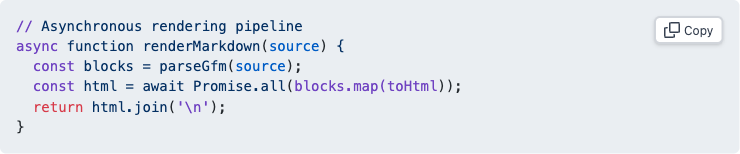
Paste this sample into a Markdown block to confirm everything renders:
# Hello, GitHub Markdown

A short paragraph with **bold**, _italic_, and `inline code`.

- A list item
- [x] A completed task

| Feature | Status |
| ------- | ------ |
| Tables  | Works  |

```js
const greeting = 'Hello';
console.log( greeting );
```
In the classic editor, in widgets or in theme templates, wrap Markdown in the [gfmr_markdown] enclosing shortcode instead. It renders through the same pipeline as the block.
Prefer a hands-on start? The plugin's Manual can create a draft post pre-filled with an extended sample covering code highlighting, tables, task lists, math, footnotes, alerts and diagrams.
What renders out of the box
Everything below is in the free plugin, with no configuration:
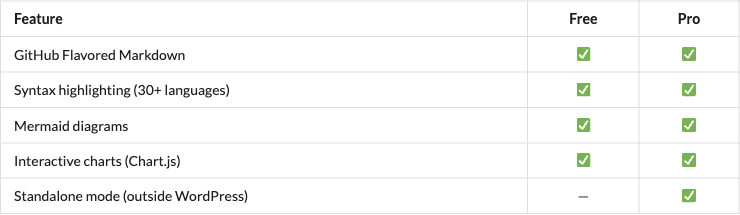
- GitHub Flavored Markdown — tables, task lists, strikethrough, autolinks, footnotes and emoji shortcodes
- GitHub-style alerts —
> [!NOTE],[!TIP],[!IMPORTANT],[!WARNING],[!CAUTION] - Shiki syntax highlighting — native grammars for 31 languages, with approximate fallback beyond that, in GitHub Light, GitHub Dark and system-aware themes
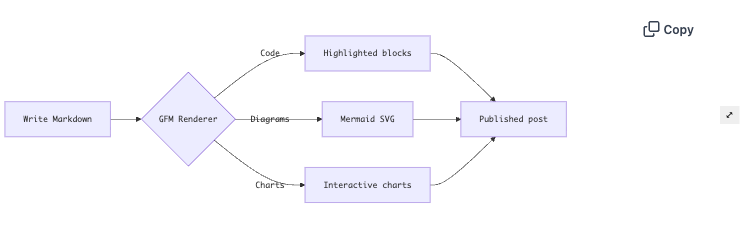
- Mermaid diagrams with interactive controls
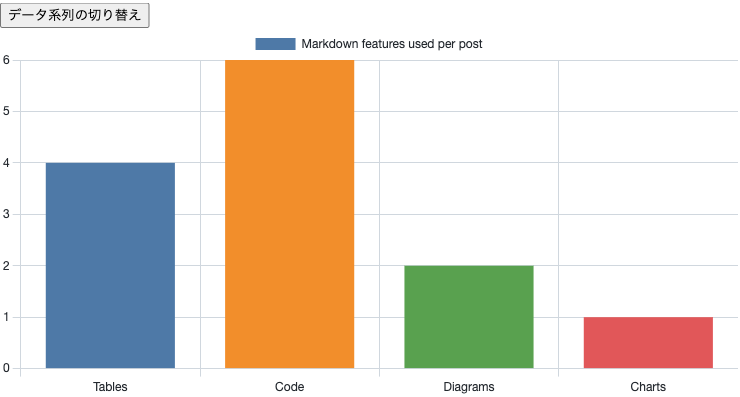
- Chart.js charts — 8 standard types from a
chartfenced code block - KaTeX math from a
mathfence,$$...$$,$...$, or the[latex]shortcode - Table of Contents, structured data, multilingual URL options and server-side rendering controls
PlantUML is opt-in
PlantUML diagrams render through an external PlantUML or Kroki server, so the feature is off by default. Enable it in three steps on the PlantUML settings tab:
- Turn on Enable PlantUML.
- Check the privacy acknowledgement — diagram source is sent to the rendering server you configure.
- Enter the Server URL of a PlantUML or Kroki endpoint.
Server-side Mermaid rendering works the same way. Until you enable one of these, no content leaves your server.
If something does not render
- Clear page cache, object cache, CDN cache and browser cache, then reload the front-end page.
- Confirm that the post uses the Markdown block or the
[gfmr_markdown]shortcode, not plain text pasted into an unsupported block. - Add a language name right after the opening backticks of a fenced code block, for example
```js. Blocks with no language are shown as plain, unhighlighted code. - Temporarily disable minification, defer or combine settings in optimization plugins if scripts or styles appear missing.
- Switch briefly to a default WordPress theme to check whether theme CSS is overriding Markdown, table or code-block styles.
- For PlantUML or server-side Mermaid, confirm the renderer URL, the privacy acknowledgement and network access from the server.
The Manual's Troubleshooting tab inside the plugin carries the full list, and the System Info tab collects what a support request needs. Never share license keys, API keys, tokens or passwords.
Next steps
- Try it in your browser (no install) — a throwaway WordPress with the plugin already active
- See rendered examples — real output from a live WordPress site
- Compare Free and Pro
- Hooks Reference — filters and actions for developers
- Markdown Renderer for GitHub → Manual in your WordPress admin — the full usage, FAQ and troubleshooting reference
Support
Free plugin usage questions and reproducible bugs belong in the WordPress.org support forum. Pro license, checkout, refund and account questions go to support@wakalab.dev instead.